Tutorial
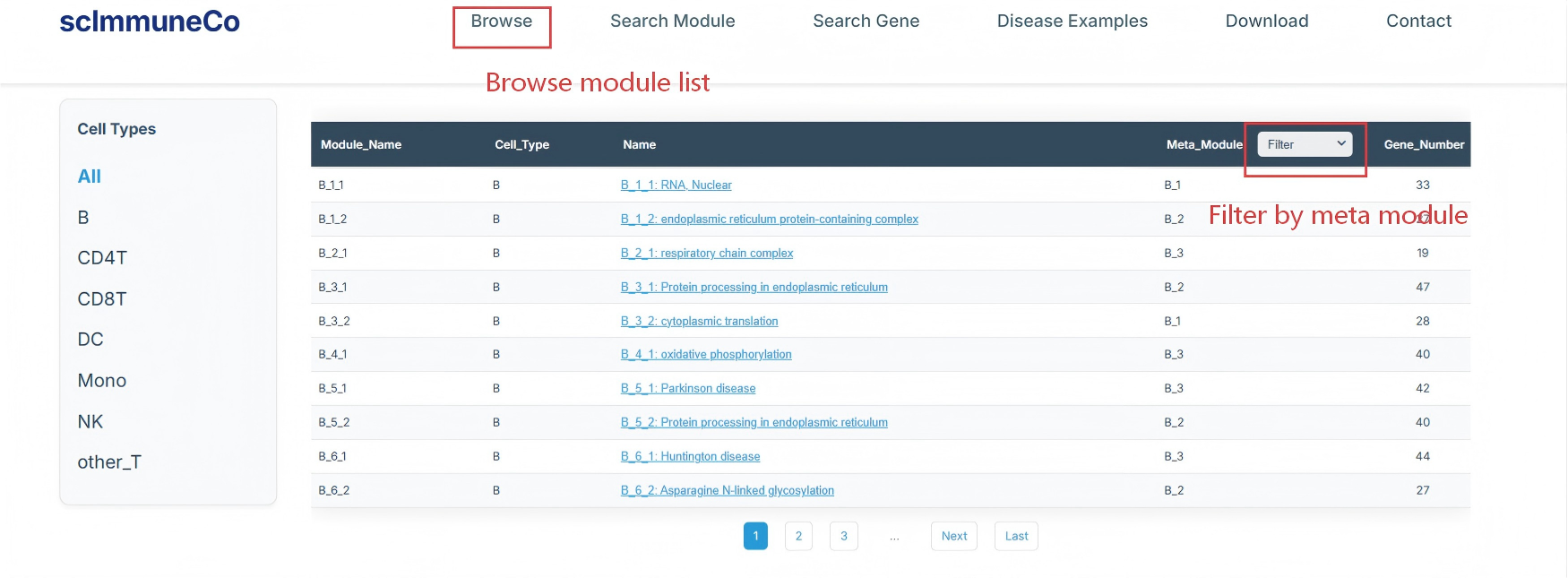
1. Browse Module
The Browse module page allows you to browse the modules by cell type and meta module. Users can select the cell type in the left panel and filter by meta module in the top bar of the table to view the modules. Click the module name to navigate to the module specific page to view the details of the module.
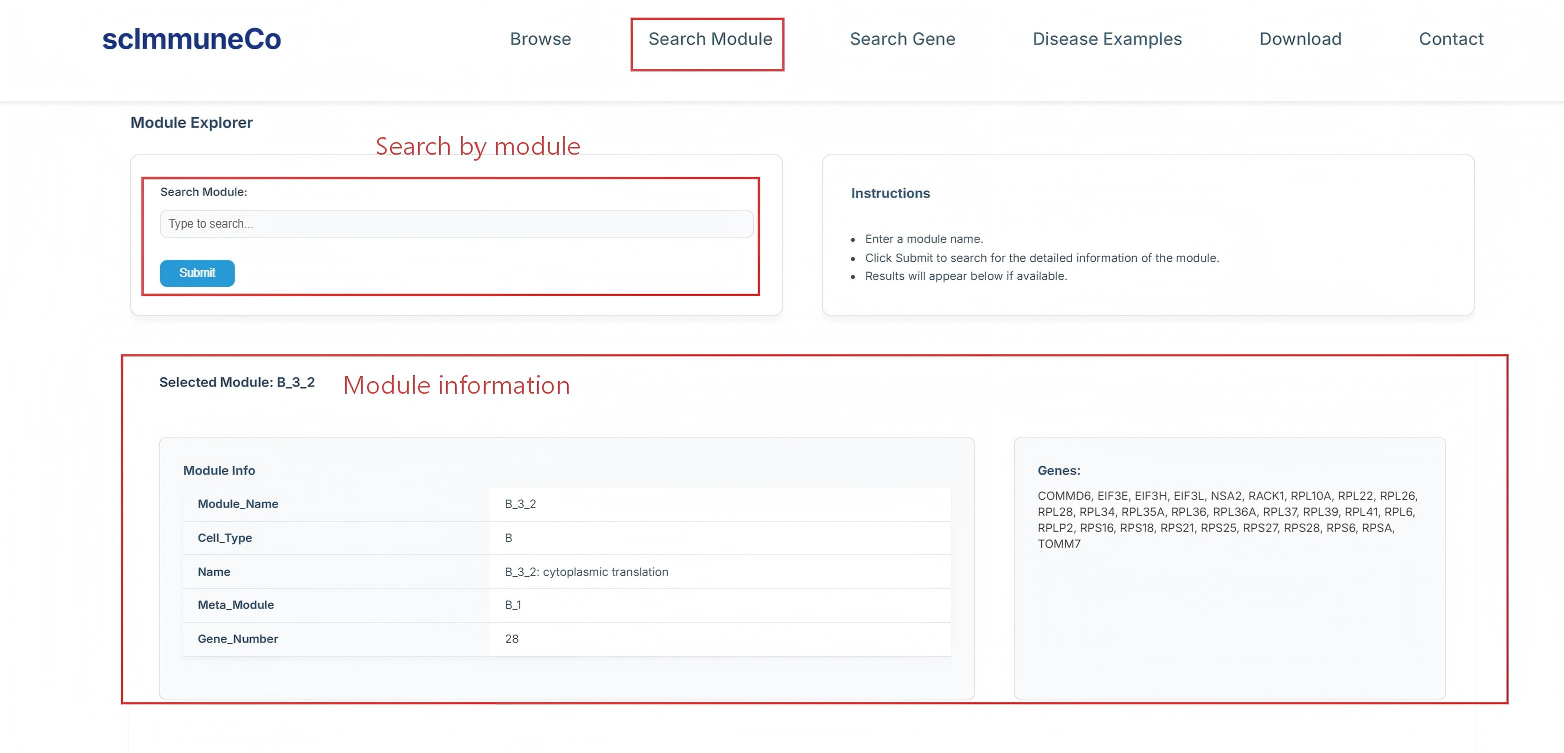
2. Search Module
The Search module page allows you to search the modules by name. Users can enter the module name in the search bar and click the search button to view the modules. Then the module information and gene composition will be displayed.
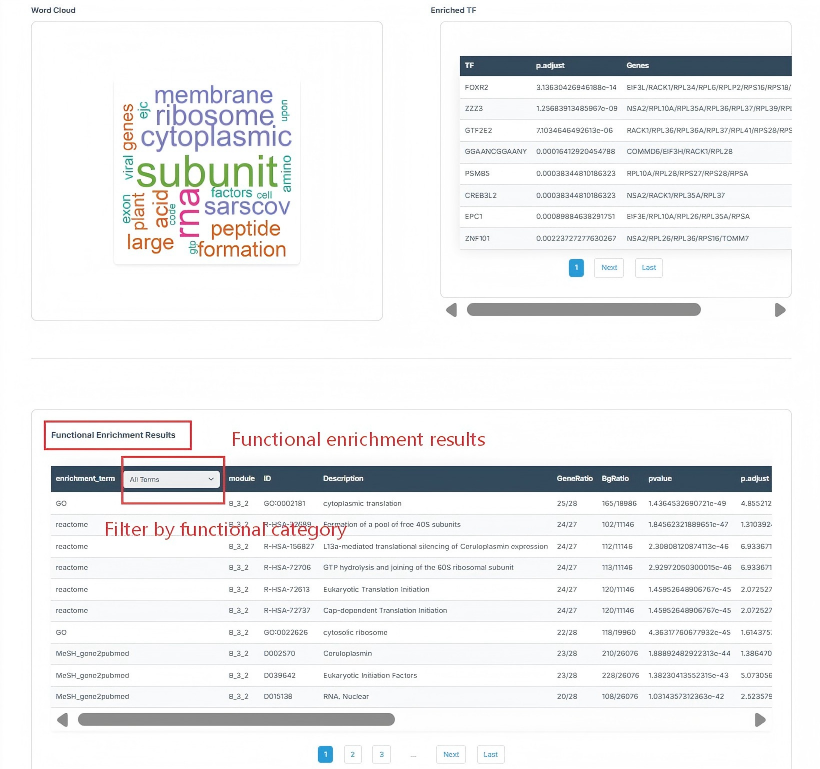
3. Module Page
The module page contains the enriched functional terms table with the word cloud figure, UMAP visualization of the module expression, enriched transcription factor. Users can filter enrichment term by the functional category to view the enrichment details.
4. Gene Page
The gene page allows user to search the gene by name. Users can enter the gene name in the search bar and click the search button to view the gene information. Then the gene information and modules this gene belong to will be displayed.
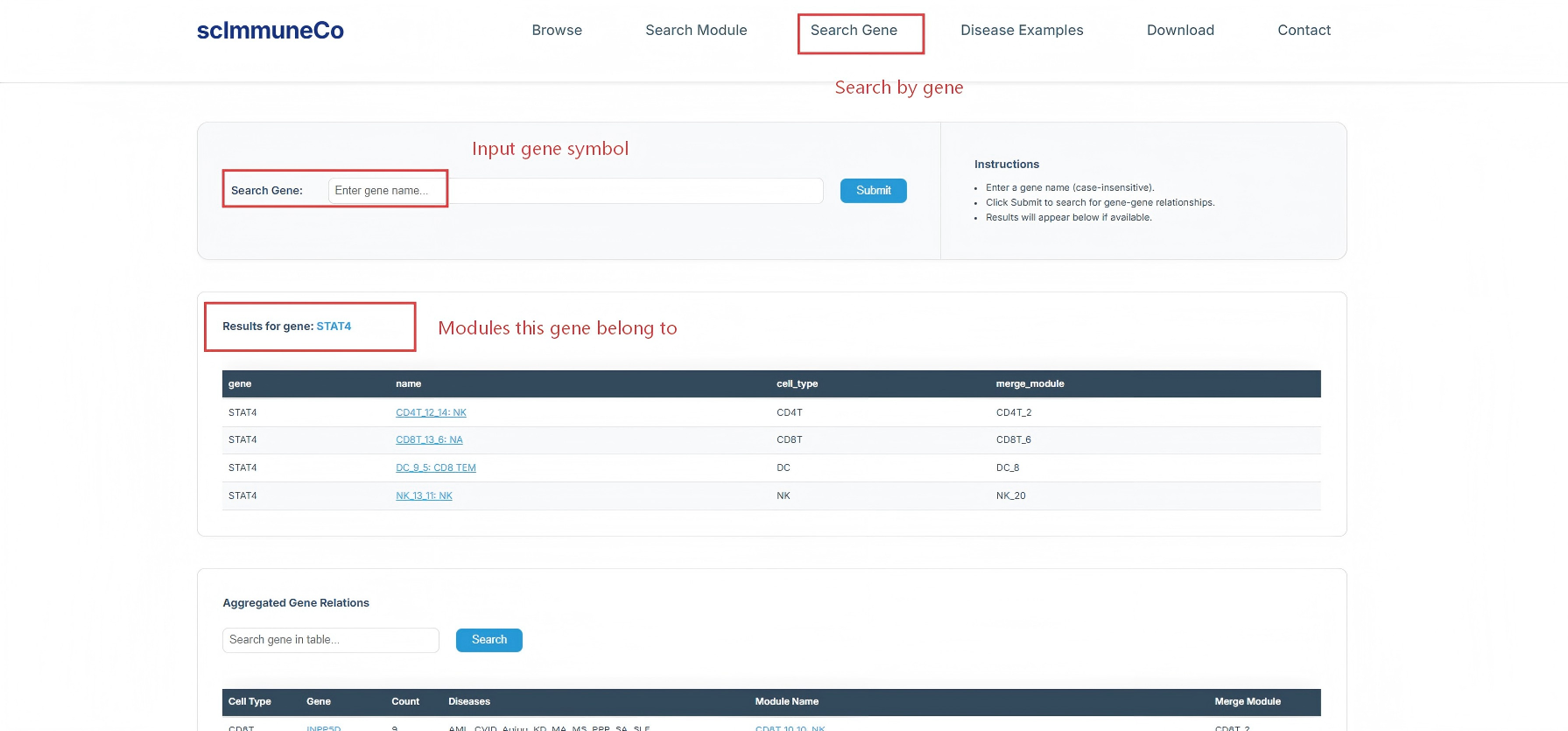
5. Gene-Gene Relationships
In the bottom of the gene page, users can view the gene-gene relationships table. This table contains the frequency and original dataset of the gene co-occur with the interested gene in the original cell type specific WGCNA modules. Users can search the gene in the top bar of the table.
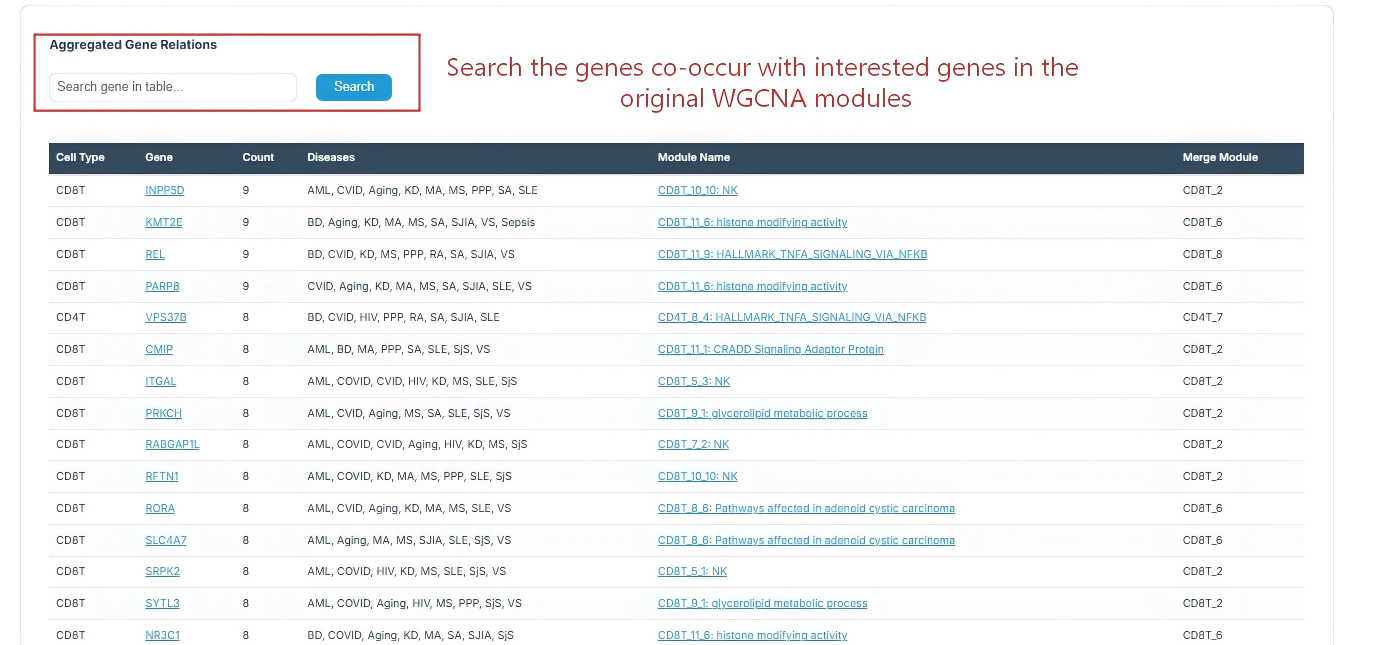
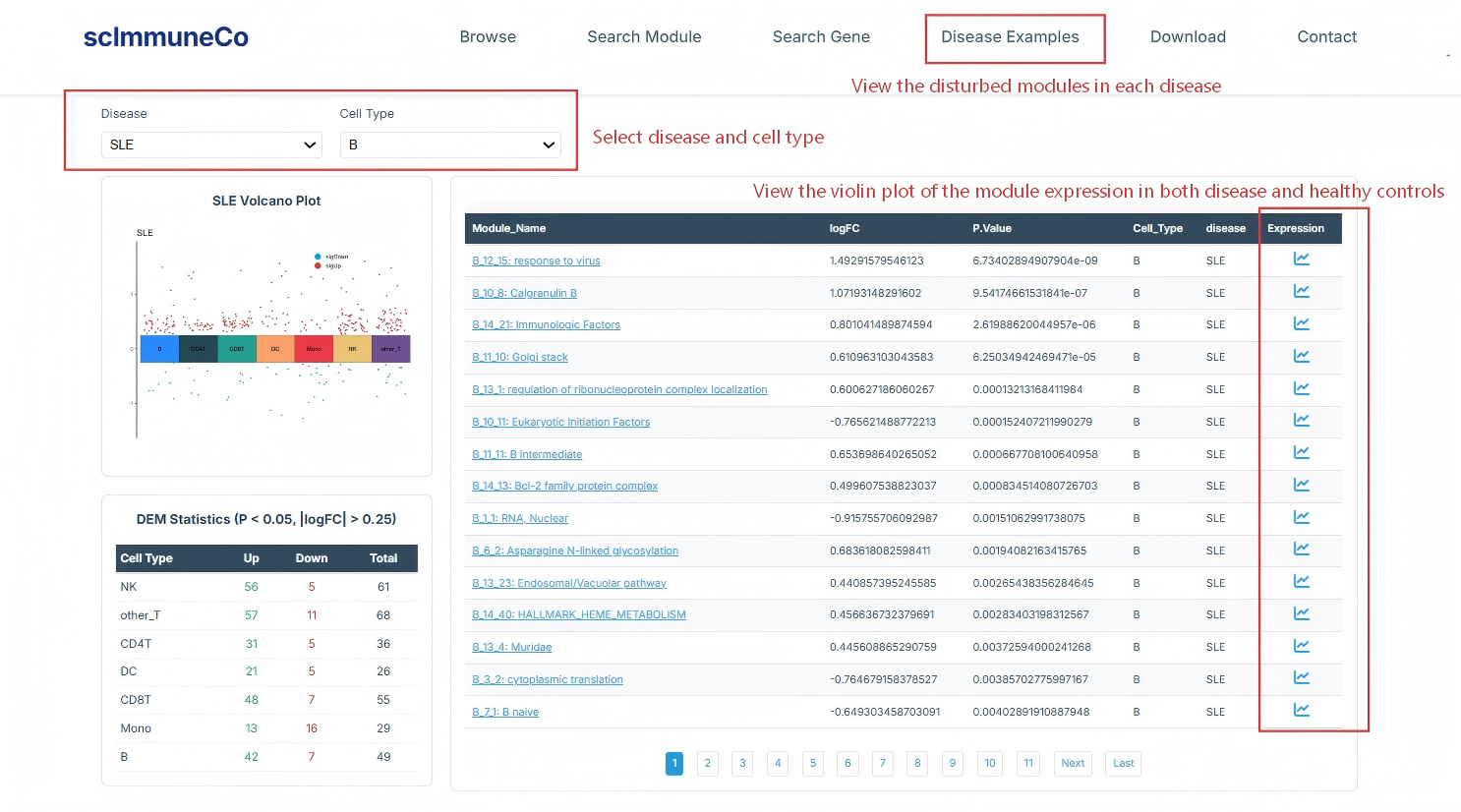
6. Disease Page
The disease page allows user to view the disease examples. Users can select the disease and filter by cell type in the top bar of the table to view the modules. Click the module name to navigate to the module specific page to view the details of the module. A violin plot is provided to visualize the expression of the modules in the disease and healthy controls.